Saturday, August 11, 2012

How To Hack Your School Network

Because of the frequency this question has been asked on this blog, i have decided to create a document for this question. This tutorial is for those newbies out there, wanting to "hack" their school. I'm gonna start by saying, if your going to hack the school, theres a high probability your get caught, and don't do anything dumb like deleting the network. Its lame, and you will get flamed for doing it. This hack will allow you to take control of the PC's at school. Lets start:

How to take control of the PC's at school:

Here are the steps;
  1. Preparing The Virus
  2. Setting Up The Virus
  3. Controlling The PC

Obviously, if you gonna take control over your school PC you need a virus. You have 2 methods:
  1. The virus I made which is harmless and you won't even notice it was executed.
  2. Dropping a Trojan on the school PC.
Method 1

What you need:
  • Pen Drive (You can buy one, or you just use yours)
  • Brain (You can't buy this)

Now, open notepad and copy/paste this code: the code

Save the file as something.bat (you can change something to whatever you want). In "Save as type:" choose "All Files".


I strongly recommend you not to change the rdport and tnport configuration. The rdport will open the remote desktop default port, and the tnport will open the telnet's client default port.

You can change the username, password and the rport (randomn port you choose to be opened)

At ipconfig /all >> C:\attach.txt you must change C:/ by your pen drive letter.

Save it and remove your pen drive.

Take your pen drive to school and run the bat file. Don't forget the pc you runned it in cause you might need it.

When you get home go to your pc and try to telnet them or remote desktop the PC.

Method 2:

In this method we will use a Trojan to control the school PC.

Here is a tutorial about how to create a Trojan: ProRat Trojan

Now just create a server (there is an explanation in the tutorial above), bind it and put it into your pen drive. Make sure you leave your PC turned on.

Then go to your school and drop the trojan.

Other way to do this is to give your trojan to a friend and tell him to stay in school. When you arrive home, send him a SMS and tell him to drop the trojan. This way you could even see if it worked.

After this you can probably do whatever you want with the PC.

How To Hack Into Computers Through WiFi

The internet is ever growing and you and I are truly pebbles in a vast ocean of information. They say what you don’t know can’t hurt you. When it comes to the Internet believe quite the opposite. On the Internet there a millions and millions of computer users logging on and off on a daily basis. Information is transferred from one point to another in a heartbeat. Amongst those millions upon millions of users, there’s you.

In this tutorial i am going to show you how to to access someone's facebook, youtube, and many other accounts which is using the same WiFi as you.

You need:
  1. Mozilla Firefox
  2. Firesheep - A Firefox extension that demonstrates HTTP session hijacking attacks.
  3. WinPcap - WinPcap is an open source library for packet capture and network analysis for the Win32 platforms. It includes a kernel-level packet filter, a low-level dynamic link library (packet.dll), and a high-level and system-independent library.

Step 1: Install WinPcap then drag the Firesheep add-on, and put it on the Firefox icon. Firefox will open and will ask you to install the add on. Install it and restart Firefox.

Step 2: Open the add-on (You can do it by clicking on View -> Sidebar -> Firesheep), then click on Start Capturing and it'll start capturing, and as soon as somebody logs in any account it'll show up the logs, and then you can access their account.

Simple, but functional and VERY effective method to hack someones facebook, youtube, myspace, etc. account through WiFi.

How To Trace and Spy Your Girlfriends Mobile Phone Live for Free

Yes Guys, this is now possible, I'm not joking. Many of us think that this is not possible or we have to spend some money for such services but believe me that we don’t have to spend any money for getting this done. Yes, PhoneOnMap makes it possible. It's a service that provides a free application that has to be installed in GPS cell phone and you are ready to track the phone from anywhere on the Internet.

This application can be useful for office work as well as family members. You can track your child as well as your girlfriend/wife too, LOL. This PhoneOnMap can be used worldwide and you can use it while traveling too. The data is stored on the company’s server for a period of one month. This can be an invaluable source for sales and marketing department of an organization to track the marketing agents.


If you are worried about the security and privacy of the service, let me tell that it is very secure and your cell phone can not be monitored by any Unauthorized User as in order to access the tracking system, you have to authenticate yourself through a personal code which was used as identification while installing application on cell phone.

Features of GPS cell phone tracking system:
  1. GPS cell phone tracker and locater will not work in the underground transportation.
  2. The application does not work when the phone is turned off.
  3. The data transmission outside provider’s coverage area will add roaming charges like any other phone service charge us.
  4. Once application is uninstalled from cell phone than you can’t do anything.
  5. On internet tracking system will show cell phone location between every 10 seconds to 10 minutes, which is depend on setting.

According to me this kind of service is very important for parents to track their children and from a business usage point of view an invaluable part of companies involved in supply and delivery system like Currier and Home delivery system. This will help them to get a real-time location of the object and provide an accurate time-frame for the delivery.

As of now this service does not provide the exact pin point location but the location determined s in the range of 10-20 meters. However with little intelligence the exact location can be easily determined especially when you wish to track your children or the cheating girlfriend ;)

www.phoneonmap.com

How to Activate GodMode In Windows 7 And Vista

If you are using windows vista or windows 7 then you should be aware of Godmode. If you are not aware about the Godmode then in this post I will explain to you what is godmode and how it can be activated in windows 7 and windows vista.

Godmode provides you with a shortcut icon where you can customize all your settings from mouse settings to display settings. This is very convenient as it provides all the options at one single place and activating godmode is also very simple and require only two simple steps.

Here is the Step by Step tutorial with screenshots to Activate godmode in windows 7 and windows Vista

1. Create a New Folder on your desktop.
2. Now Rename you new folder to GodMode.{ED7BA470-8E54-465E-825C-99712043E01C}
3. You can also now change the name GodMode to any other name.
4. You will see the icon of the folder to change automatically.Double click on it and you will get godmode customization settings options.

How To Use Gmail as a Virtual Hard Drive

With all of that extra space on Gmail, wouldn’t it be nice to use some of it for storage rather than mail?

You can, with a free piece of software called GMail Drive shell extension. Download it from here, and install it.

Google doesn’t look kindly on people who use software like this to turn Gmail into extra storage for your PC. In fact, it may lock your account if it finds you doing this. For details, see item #3 on this site.

After you install it, run Windows Explorer. A new drive will appear, called the Gmail Drive. Double-click it, and type in your Gmail password and username. If you don’t want to have to log in every time you click the drive, check the box next to Auto Login.

You can use the Gmail drive as you can any other folder on your hard drive. (You’ll of course have to be connected to the Internet for it to work.) This means you can copy files to it using Windows Explorer in the same way that you do any other files, and you can create sub-folders as well.

The Gmail drive looks like any hard drive on your system, but remember that it’s a virtual drive and you’re connected to it over the Internet. So, you can transfer files to it only at the speed of your Internet connection. On a dial-up connection, this will be exceedingly slow.

When you view the contents of your Gmail drive, the icons for the files won’t necessarily look like the normal ones. Instead of showing the native icons for each file type (such as pieces of paper for Word files), in some instances, they’ll show as gear-type icons.

When you copy a file to your Gmail drive, you’re actually creating an email and posting it to your account. The email will appear in your Inbox, with the file as an attachment. If you want to open any of the files from inside Gmail, click the email to view it, and then click the Download button. The file will be downloaded to your PC. Using Gmail as a virtual drive can make your Inbox pretty messy. Luckily, you can create a filter that will automatically route the files to your archived mail folder. That way, you’ll never see them in your Inbox, and they’ll be in your archives.

The emails with the files attached to them all show up preceded by the letters GMAILFS. So, create a filter that will move all files with that prefix to your archived mail by first clicking Create a Filter from the top of the Gmail screen. In the Subject box, type GMAILFS, check the box next to “Has attachment,” and then click Next Step. Then check the box next to “Skip the Inbox (Archive it)”, and then click Create Filter. All your files will be sent straight to your Archive, bypassing the Inbox.

You can also have them labeled so that you know at a glance which files you copied from your hard disk. Before clicking Create Filter, check the box next to “Apply the label.” From the drop-down box next to it, select New Label, and from the screen that appears, type in the label name (such as Hard Drive), and click OK. From the drop-down list, choose your new label. Now click Create Filter. The files will be archived but will also have the label next to them, so you can easily view only your files by clicking the Hard Drive label when you log into Gmail.

It’s not a good idea to use Gmail as your hard drive if you’re going to use POP3 to retrieve your email from Gmail with your email software. If you do that, whenever you retrieve email from Google, you’ll also retrieve all the files you’ve copied to Google when you used it as a virtual hard drive, which can be hundreds of megabytes.

Protect Yourself Against Viruses, Spyware and Web Bugs – For Free


Kill Viruses

Big-name antivirus software such as Norton AntiVirus or McAfee VirusScan forces you to pay for a subscription every year, but they have another drawback as well. They also tend to suck up a lot of system resources and use plenty of RAM, and your PC can take a big performance hit from them just to keep itself protected.

There’s a better way. Use avast!, nifty antivirus software that’s free for personal use and that takes up so few system resources and RAM you won’t even notice it’s there. It includes seven different shields, and it’s a good idea to install and use them all. Once avast! is running, you can customize each shield. Double-click the avast! icon running in the System Tray and from the screen that appears, select the shield you want to customize. To change the sensitivity of the scanner—how aggressively the shield should act—move the slider. Move it to the left to make it less sensitive, and to the right to make it more sensitive. To customize the shield even further, click the Customize button. The dialog box that appears will vary according to the shield you’re customizing.

Note, by the way, that before you install avast!, you’ll need to first uninstall whatever antivirus software you’re already using; otherwise it might not work properly.

Protect Yourself Against Spyware

For most people, spyware has replaced viruses or worms as the most-feared and obnoxious danger on the Internet. A relatively few number of people become infected by viruses or worms, but it seems as if almost everyone you know has been hit by some kind of spyware.

Spyware is a catch-all phrase that encompasses many different types of obnoxious programs. The least intrusive of the bunch report on your surfing activity to a web site, which tracks what you do and then delivers ads to your PC based on your interests. But increasingly, they are becoming more intrusive. Some of them spawn pop-up swarms of ads that appear so quickly they overwhelm your PC, slowing it down and making it unusable. Others hijack your browser home page so that no matter what you do, you’re sent to a home page of the hijacker’s choosing, which might be a pornographic site, or perhaps a web site that spawns even more pop ups. And some kinds of spyware, called keyloggers, literally spy on you by watching every keystroke you make, and then send that information to someone on the Internet.

Even more fearsome is spyware that turns your PC into a “bot” or a “zombie” and forces it to spew out tens of thousands or more pieces of spam, all without your knowledge.

But you don’t have to be a victim; there’s a good deal you can do to protect yourself, and you won’t have to spend a penny to do it:

Get a free spyware detector and eradicator

One of the best and most popular free program is Ad-Aware. It checks your system for spyware, finding not only program files, but also Registry entries and cookies. After it does a check, you can choose which spyware problems you want the program to fix, and it’ll go about its work, deleting files, folders, and cookies, and fixing Registry entries. Because no one spyware-killer is perfect, I suggest getting another free one, Spybot Search & Destroy. If you’re a Vista user, you already have a free piece of antispyware, Windows Defender, shown on the picture below, on your system. If you use an earlier version of Windows, get a free copy of Windows Defender.


Be vigilant about what you download

There are plenty of free programs available on the Internet, but not all have good intentions in mind. Some are spyware. So be careful before downloading any free software. Go to reputable download sites, such as the download library run by PC World or to CNET Download.com and read the descriptions and reviews, to make sure the software doesn’t carry a spyware load. In addition, head to the Index of Known Spyware page run by Gibson Research, the SpywareGuide, and the Spyware Warrior List of spyware for a list of spyware programs.

Use a personal firewall such as ZoneAlarm

A personal firewall will let you block any program on your system from contacting the Internet without your approval. With one installed, spyware can’t “phone home” and alert others to your surfing habits. Windows XP’s Windows Firewall doesn’t have this capability, so you can’t use it to block spyware. Windows Vista’s Windows Firewall is better than XP’s at blocking these kinds of outbound connections, but it may not block all of them. For maximum safety, get a free firewall such as ZoneAlarm.

Kill pop ups

Pop-up ads are a common way of delivering spyware. Click a pop up, and you might get infected with spyware. So, kill pop ups. Internet Explorer includes pop-up killers, as does Firefox. But keep in mind that sometimes pop-ups make it through their pop-up killers. If one does, close it down and don’t click anything inside it (especially fake close buttons; be sure to use the real Windows controls in the upper corners of the window).

Be wary of files and links sent in instant messages

Increasingly, spyware is propagated via instant messaging programs. Spyware can in essence take over someone’s instant messaging program and then send itself to everyone on the buddy list, either as an executable file or a link—and it appears that a person, rather than spyware is sending the file or link. So before clicking a link or using a file sent via instant messaging, double-check with your friend that he is actually sending you something, and that spyware hasn’t done the job.

Stop drive-by downloads

A web site might attempt to download software to your PC without your knowledge, and it might carry a spyware payload. Internet Explorer includes tools to stop drive-by downloads, as does Firefox. However, they’re not necessarily 100 percent effective. So don’t click links sent to you in spam, which can lead to sites with drive-by downloads.

Watch Out for Web Bugs

Web bugs are invisible bits of data, frequently a single pixel in size (sometimes called clear GIFs), that can track all your activities on a web site and report them back to a server. They are one of the more pernicious ways your online activities can be tracked, no matter which browser you’re using. Sometimes, the web site the bugs send information to isn’t the one that contains the web bug; for example, a web bug might send information back to an online advertising network.

Web bugs can send the following information back to a server:

  • The IP address of your computer
  • The URL of the page on which the web bug is located, so they know you visited the page
  • The time the web bug was viewed, so they know exactly when you visited the page
  • The URL of the web bug image
  • The type of browser you have
  • The values of certain cookies (generally only cookies set by the web site that the bug resides on)

A free piece of software called Bugnosis will alert you whenever it comes across web bugs on pages you visit. It reports on the URL the bug reports to, and, for some bugs, it lets you click a link it creates so that you can send an email of complaint to the web site that runs the bug. It runs inside Internet Explorer as a toolbar and doesn’t work with any other browsers.

The software can’t actually protect you against web bugs, but it can alert you when you visit pages that use them, so you’ll know to stay away from them in the future. When you visit a site, the Bugnosis toolbar reports on the number of suspicious items that might be web bugs. To see detailed information about each suspicious item and web bug, click the down arrow next to the Bugnosis logo, and choose Bugs Found in This Session. You’ll see a list of every suspicious web bug. Click the item, and you’ll see a more detailed description, and an analysis on whether the item is truly a web bug or only suspicious.

Bugnosis can’t actually block web bugs; it can only alert you to their presence. If you want your privacy protected when you surf the Web, your best bet is to surf anonymously.

How To Control Your Computer with Your Cell Phone

Remotely Control Your PC from Anywhere with Your Cell Phone!

Have you ever been away from your desktop and needed some information that was on it? Have you ever needed to shutdown your computer or do something underhanded while away? In this post I am going to show you how to control your PC from your Cell Phone.

There is a program called CellPC that allows you to perform operations on your home/work PC via your cell phone or wireless device quickly and easily. Imagine being able to shutdown, restart, or logoff your PC remotely... search files on your computer and then send them to your cell phone... view a realtime screenshot of your computer at anytime... lockdown your computer... send a message/note/reminder to your computer... and much more!

CellPC Top Features:

  • Perform Shutdowns, Restarts, Logoffs
  • View a Screenshot of your Computer
  • Search for and Retrieve Files
  • View and Close Open Windows
  • Customizable Commands Editing
  • Be Alerted when your Computer is Used View and Close Open Applications
  • Send Messages to your Computer
  • Lock and Unlock your Computer
  • Secure Command Execution
  • Log all Access Attempts and Commands
  • Disable/Enable Commands at will


How does CellPC Work?


Will CellPC Work for Me?

CellPC can work with any Windows computer as long as it has a steady internet connection while the software is running.

If you want to verify that CellPC will work with your device, contact the CellPC support team so you can send them a test message from your phone.

Click Here To Download CellPC

Lock Your Computer With USB Flash Drive

Security of laptops and notebooks have been evolving with new technologies like fingerprint readers, eye scanners, face recognition etc but what about the personal computers?

Using this trick you will be able to lock your computer with a Usb. The computer will work only when the Usb is plugged in. Once the Usb is removed keyboard and mouse will automatically get disabled and your screen will get dark. Moreover your computer will get automatically locked. To unlock the computer you will need to insert the Usb again.

This trick will work on on all versions of windows including both windows 32 bit and 64 bit

Here is the Trick to lock Your Computer With Usb Using Predator

1. Download predator software by clicking here

2. Predator will get launched automatically after completing installation if not you can run it from Start/Programs/Predator

3. Now Insert your Usb. You will get a message to define your new password (This process will not format your pendrive and your pendrive data will not be affected by this at all)


4. Click on Ok and Enter your your new password in next dialog box

5. Check that the drive letter displayed under “USB key drive” actually matches your flash drive or choose the correct letter from the dropdown list

6. Finally click on Create Key button and then on OK button


After this the software will automatically exit.Now restart the program by clicking the icon on desktop.

Predator will take few seconds for initialization. Once the icon in the taskbar turns green then your software has initialized itself.

Friday, August 10, 2012

In 2013

2013
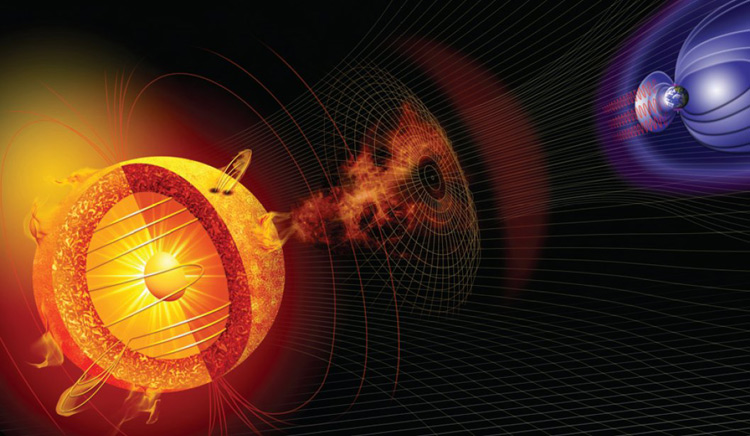
Solar flares are disrupting Earth's magnetosphere

The Sun reaches its solar maximum this year - the period of greatest activity in its 11-year solar cycle. Because of the unusually low level of activity in recent years, this has caused a sudden build up of energy now, with large "solar storms" hitting Earth's magnetosphere. These are strong enough to disrupt electronic systems on the ground. Satellites, air travel, car navigations, the banking system, hospital equipment, computers and many other machines are affected during this period.*

2013 solar storms flares sun cycle activity
Credit: NASA


China overtakes the USA in scientific research

In terms of scientific output, China had been closing the gap between it and the developed world for several years. Thousands of new research papers were being published each year at an accelerating rate, while millions more students were entering universities as the country became more developed. At the same time, the United States had seen a steep drop in its own scientific and technological research. In 2004, China passed the United Kingdom, becoming second in terms of academic studies. The gap finally closes in 2013, as even the USA falls behind China.*

2013 technology trends future timeline predictions china usa science overtakes


The Gaia mission is launched

While the naked human eye can see only a few thousand stars on a clear night, Gaia will map over a billion - approximately 1 percent of all stars within our own Milky Way galaxy - over the course of its five-year mission beginning in 2013. It will chart their brightness and spectral characteristics, as well as their positions and motions, forming a highly detailed three-dimensional map.*


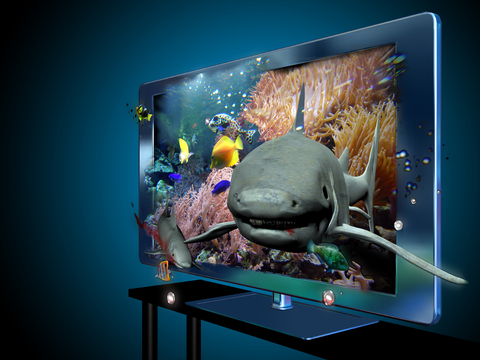
3D technologies are widespread

3D technology is now widespread across a range of communication and entertainment platforms. It has become a mainstream element of cinema, TV, Internet, video games and even mobile. This technology provides users with a whole new level of immersion, interaction and realism.
James Cameron's Avatar, released in 2009, was a major breakthrough in terms of developing this format and raising awareness of its potential.
In 2010, new 3D TV channels were introduced and these could even be viewed without 3D glasses.* This effect was achieved via multiple projectors behind the screen, combined with a lens array creating parallax effects from any direction. Among the TV events during this time was the first ever FIFA World Cup to be screened in 3D.
Compatibility was soon incorporated into a range of consumer products including Blu-ray recorders, games consoles and personal computers. By 2013, the technology has become widespread in homes in developed countries.*

3d technologies future explained
© Philcold | Dreamstime.com


Highly flexible touch sensors are appearing in a range of gadgets

Highly flexible, film-based touch sensors are entering the smartphone and tablet markets.* They are also extending touch capabilities into a range of new consumer and industrial products. Using roll-to-roll metal mesh technology, they provide a high-performance alternative to existing touch sensors. Larger, lighter, sleeker, curved and edgeless designs can now be developed for handheld devices. Thinner sensor stacks with flawless touch performance, excellent optical clarity, low sheet resistance and low power consumption are enabling designers to turn unique, futuristic concepts into functional designs at lower total system costs compared to previous market alternatives.


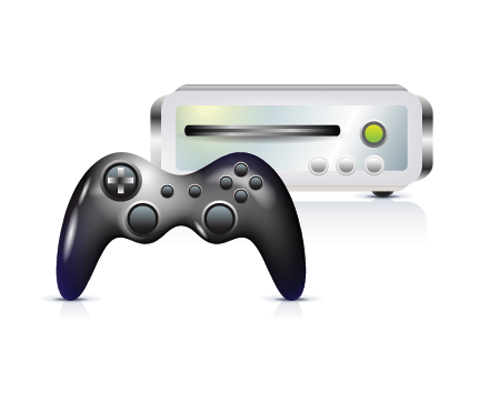
Launch of the PS4 and Xbox 720

2012 saw the launch of Nintendo's Wii U - the first of the eighth generation games consoles.* By late 2013, it is joined by the PS4 and Xbox 720. These new machines offer substantial improvements in graphical power. The PS4, codenamed "Orbis", is built around an AMD x64 CPU and AMD Southern Islands GPU, handling screen resolutions of up to 4000 x 2000 pixels, as well as 3D gaming in full 1080p.* The Xbox 720, codenamed "Durango", is powered by a state-of-the-art IBM Power PC CPU, featuring 16 cores, alongside a Radeon HD 7000-series graphics card.*

ps4 xbox 720 xbox720 orbis durango 2013 2014 future gaming games console timeline


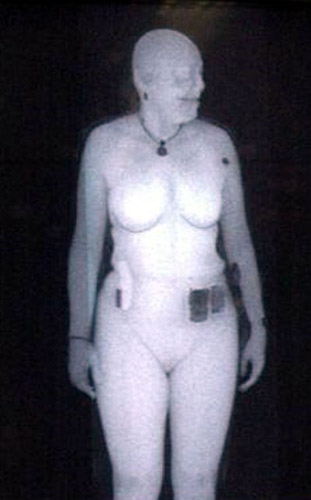
Full-body scanners are mandatory in US airports

In the US, a bill called the S.A.F.E.R. A.I.R. Act has been passed, making full-body scanners mandatory in airports. These devices create a nude image of a person's body through their clothes, in order to look for hidden objects without physically removing their clothes or making physical contact. The use of these machines is controversial, raising privacy issues, as well as concerns over the use of backscatter X-rays.*

full body scanners technology 2013 tsa


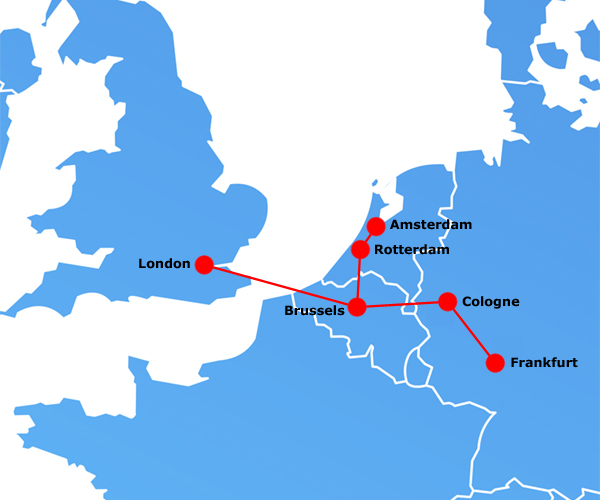
Direct high-speed rail from London to Frankfurt and Amsterdam

Two of Europe's biggest financial centres - London and Frankfurt - are now connected by a high-speed rail link. Trains running at 320 kph (200 mph) provide a journey time of under five hours. Combined with cheaper fares and better onboard web access, this offers a genuine alternative to air travel. The service also runs to Brussels, Cologne, Rotterdam and Amsterdam.*

london frankfurt train high speed rail route 2013 amsterdam future transport
© Will Fox


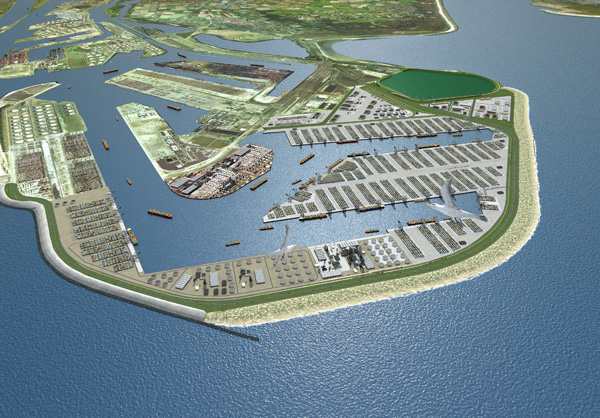
Expansion of the Port of Rotterdam is completed, tripling its capacity

The Port of Rotterdam is the largest port in the Western Hemisphere, and one of the busiest in the world. Completed this year is the ambitious Maasvlakte 2, the largest land reclamation project in Europe and one of the single largest earth-moving projects in history. Approximately 2000 hectares are reclaimed. With its completion, container capacity is tripled - providing a significant boost to the Dutch economy.*

maasvlakte 2 2013 future port of rotterdam expansion netherlands holland timeline
Credit: Havenbedrijf Rotterdam N.V., Projectorganisatie Maasvlakte 2.


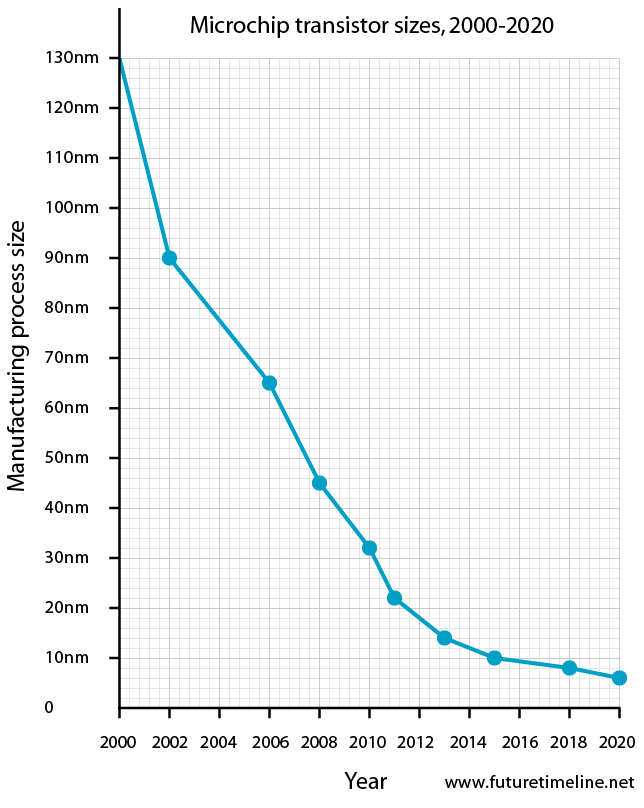
14 nanometre chips enter mass production

The next generation of microprocessor technology is released by Intel, with transistors now based on a 14nm manufacturing process.* For comparison, a carbon atom is 0.34nm wide.* The 4GHz barrier in stock CPU is finally being passed, thanks to the performance and energy efficiency of these new chips.

transistor size timeline intel computer chips future trend roadmap 2012 2013 2014 2015 2016 2017 2018 2019 2020 moores law 22nm 16nm 14nm 11nm 10nm


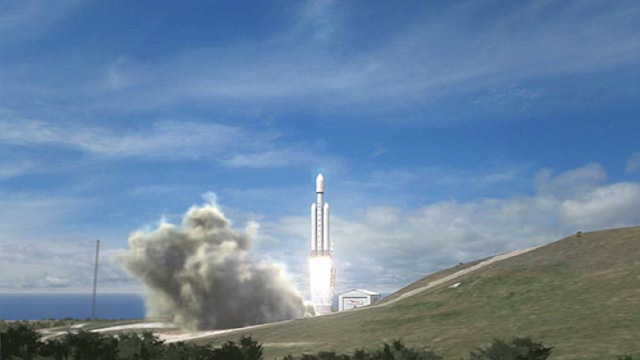
The first test launch of the Falcon Heavy

The Falcon Heavy - the most powerful rocket since the Saturn V - has its first demonstration flight this year. It is designed to lift satellites or spacecraft into orbit weighing more than 53 tons, or 117,000 pounds - over twice the capacity of the Space Shuttle and Delta IV Heavy launcher. At full power, it has thrust equivalent to fifteen 747's.
The rocket is being developed by SpaceX (Space Exploration Technologies Corporation), one of two private companies that NASA has contracted to transport cargo to the International Space Station.
SpaceX's goals include simultaneously lowering the price of orbital spaceflight and improving reliability, both by a factor of ten, whilst creating the first fully reusable orbital launch vehicle. Longer term, the company intends to design an even more powerful rocket, known as a "super heavy-lift" vehicle. This would have about three times the power of a Falcon Heavy, or about 50 percent more than the Saturn V - enough to carry people to Mars.*

falcon heavy mars 2013 future space
Credit: SpaceX

Beautiful building


1. Burj Al Arab, Dubai, UAE


2. Sagrada Família, Barcelona
3. Tiger’s Nest Monastery, Bhutan

4. Wat Rong Khun, Chiang Rai, Thailand

5. Institute for Sound and Vision, Hilversum, The Netherlands

6. The Golden Temple, Amritsar, India

7. New Norwegian Opera and Ballet, Oslo, Norway

8. The Guggenheim, Bilbao, Spain

9. Great Mosque, Djenne, Mali

10. Mont St. Michel, Normandy, France

11. Catherine Palace, Outside St. Petersburg, Russia

12. Nelson-Atkins Museum’s Bloch Building, Kansas City, MO

13. Gresham Palace, Budapest, Hungary

14. The Bauhaus, Dessau, Germany

15. Christian Dior Store, Omotesando, Tokyo